
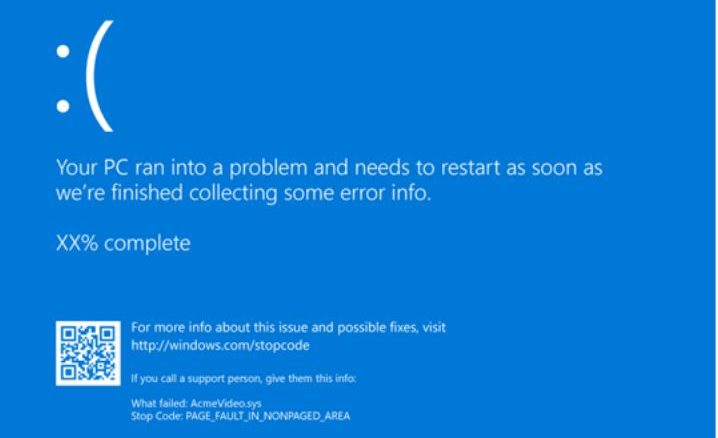
Sometimes workstations surprise us in the worst possible way: my Windows 10 Pro x64 machine started crashing completely unexpectedly. What followed was a systematic analysis that ultimately led to a precise hardware cause. These are the notes from that troubleshooting session.
The Problem
The crash manifested in different ways that gradually worsened over time. In some cases: complete interface freeze, with no apparent activity — only solution was to force power off and restart. In other cases, increasingly frequent: Blue Screen of Death (BSOD) with inconsistent error codes:
- IRQ NOT LESS OR EQUAL
- PAGE FAULT IN NONPAGED AREA
Anyone experienced in Windows troubleshooting knows these two messages are typical of two broad categories of problems: faulty drivers or memory (RAM) issues. This is where the investigation began.
Check 1 — Recent Updates?
Windows 10 updates itself automatically, so the answer isn’t immediately obvious. A look at Update Manager confirmed there had been no significant updates beyond the latest Windows Defender definitions.
Check 2 — Errors in System Logs?
Second step: check the Event Viewer. Nothing relevant except recurring errors from a failed uninstallation. Tip: ignore errors that predate the problem or put them on the back burner — spending hours resolving unrelated error messages is frustrating and misleading.
Check 3 — Peripheral Anomalies or Driver Issues?
A check in Device Manager resolves this quickly. If no device shows anomalies, it’s still worth checking for updated drivers covering potential bugs — especially if you’ve recently added any new peripheral.
Check 4 — Operating System Integrity
Microsoft provides two tools: DISM.exe (Deployment Image Servicing and Management) and sfc.exe (System File Checker). From an elevated command prompt:
DISM.exe /Online /Cleanup-image /Checkhealth
DISM.exe /Online /Cleanup-image /Restorehealth
sfc /scannow
References: KB947821 — DISM · KB929833 — SFC
Check 5 — Disk Integrity
A problem on the disk hosting the page file could translate into the errors described above. A remote hypothesis, but worth ruling out. Via graphical tools or the always-reliable chkdsk:
chkdsk [volume] /scanCheck 6 — RAM Memory Diagnostics
If all the previous checks lead nowhere, the issue may be a hardware RAM problem. Microsoft provides the Windows Memory Diagnostic Tool (MdSched.exe), which schedules a test at the next restart (Standard mode is sufficient in most cases).
If the test identifies a problem, the only solution is to remove the memory modules one at a time (or by channel) and re-run the test until the faulty module is identified.
In my case, at the end of the analysis, I bade farewell with full honours to a glorious but by now ancient and faulty 1GB Samsung RAM module. But everything was back to working as before. 😊
Reference: TechNet — Windows Memory Diagnostic